

⭐ Introduction
So you’ve decided to learn Python? Amazing! Python is famous for being one of the easiest and most powerful programming languages in the world. Before we jump into coding dragons, treasure maps, and fun projects, you need Python installed on your computer.
This guide walks you through on how to install Python on Windows, Mac, and Linux with simple steps anyone can follow — kids, adults, complete beginners, everyone.
Let’s get your computer ready to code!
🟦 Section 1: Install Python on Windows
Step 1: Download Python
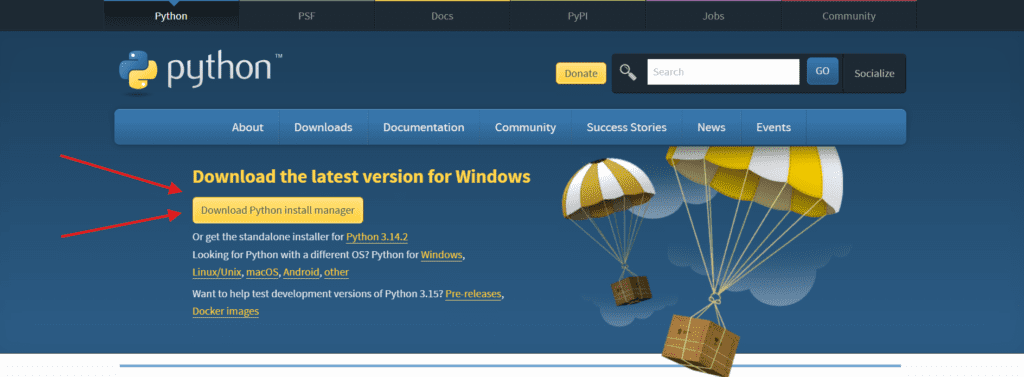
Visit the official download page:
👉 python.org/downloads
You’ll see a bright yellow button:
“Download Python 3.x.x”
Step 2: Run the Installer
After downloading, double-click the installer.
At the bottom, check this VERY important box:
✔ Add Python to PATH
Step 3: Click “Install Now”
Let the installer work its magic. It takes about 1–2 minutes.
Step 4: Verify Python Installed
Open Command Prompt:
Press Windows Key → type “cmd” → Enter
Type:
python –version
If Python is installed correctly, you’ll see something like:
Python 3.12.2
🎉 Windows setup complete!
Follow the below video in case you get stuck anywhere
🍎 Section 2: Install Python on macOS
Step 1: Download Python
Go to:
👉 python.org/downloads/mac/
Click the macOS installer (the .pkg file).
📷 Image placeholder:
Image Idea: macOS download page with Python button highlighted
Prompt: “Clean macOS-style screenshot of Python download button highlighted.”
Step 2: Run the Installer
Double-click the .pkg file.
Follow the instructions:
• Continue
• Agree
• Install
Enter your Mac password if needed.
Step 3: Verify Installation
Open Terminal:
Press Cmd + Space → type Terminal → Enter
Type:
python3 –version
You should see:
Python 3.x.x
🎉 Python is now ready on your Mac!
🐧 Section 3: Install Python on Linux
Linux often comes with Python pre-installed.
Check using:
python3 –version
If Python is missing or outdated:
Ubuntu / Debian
sudo apt update
sudo apt install python3
Fedora
sudo dnf install python3
Arch
sudo pacman -S python
🎉 That’s it — Linux installation is usually the quickest.
🔍 Section 4: Common Python Installation Problems (And Easy Fixes)
❗ Error: “Python is not recognized” (Windows)
Cause: PATH wasn’t added.
Fix:
- Uninstall Python
- Reinstall
- Select Add Python to PATH
❗ Error: Typing python doesn’t work on Mac
Use python3 because macOS reserves python for older system files.
❗ Error: Permission Denied (Linux/Mac)
Run with sudo.
❗ VS Code Not Detecting Python
In VS Code:
- Press Ctrl + Shift + P
- Type: “Python: Select Interpreter”
- Select Python 3.x
❗ Two Python Versions Installed
Use:
- Windows: py
- Mac/Linux: python3
🧪 Section 5: Test Python With Your First Program
Open:
• Command Prompt
• Terminal
• Or VS Code terminal
Type:
python
(or python3 on Mac/Linux)
Now write:
print("Hello, Python Cubs!")If it prints:
Hello, Python Cubs!
You’re officially a Python programmer 🎉🐍
🟩 Section 6: 5 Starter Exercises After Installing Python
Here are simple beginner-friendly exercises to build confidence.
Exercise 1: Say Hello
print("Hello World!")Exercise 2: Do Some Math
print(15 + 27)Exercise 3: Create a Variable
name = "Python Cub"
print("Welcome,", name)
Exercise 4: Make a Tiny Calculator
a = 8
b = 3
print("Add:", a + b)
print("Subtract:", a - b)
print("Multiply:", a * b)
print("Divide:", a / b)
Exercise 5: Fun Emoji Line
print("🐍" * 20)Kids LOVE this one.
🌟 Section 7: What’s Next?
You now have Python installed and tested.
Your computer is ready. You’re ready. The adventure begins.
Next steps on Python Cubs:
• Learn variables
• Try loops
• Build your first mini-game
• Download worksheets
• Follow beginner roadmaps
Python Cubs will guide you, step by step, from total beginner to confident coder. Ready for the next lesson?
➡️ How to Run Your First Python Program